
Welcome to Your AI Marketing Team.

You're in. Everything you need is right here—your Skills, your setup guides, and a few short videos to get you up and running quickly.
If you're not sure where to start, start with the Newsletter Writer or Social Caption Writer. They're the fastest way to see what your AI team can actually do.
Get Started in 3 Easy Steps
Complete Your Brand Playbook Exercise
Download Your Skills
Start Your First Project
Before you dive in, two things will make everything work better.
Watch the setup video first.
It's 5 minutes and covers everything you need to know before uploading your first Skill.
Download the Startup Guide.
Your step-by-step reference for setup, plus the full prompt library you'll use with every assistant on your team. Keep it open in a tab while you work.
Step 1
Create Your Brand Playbook
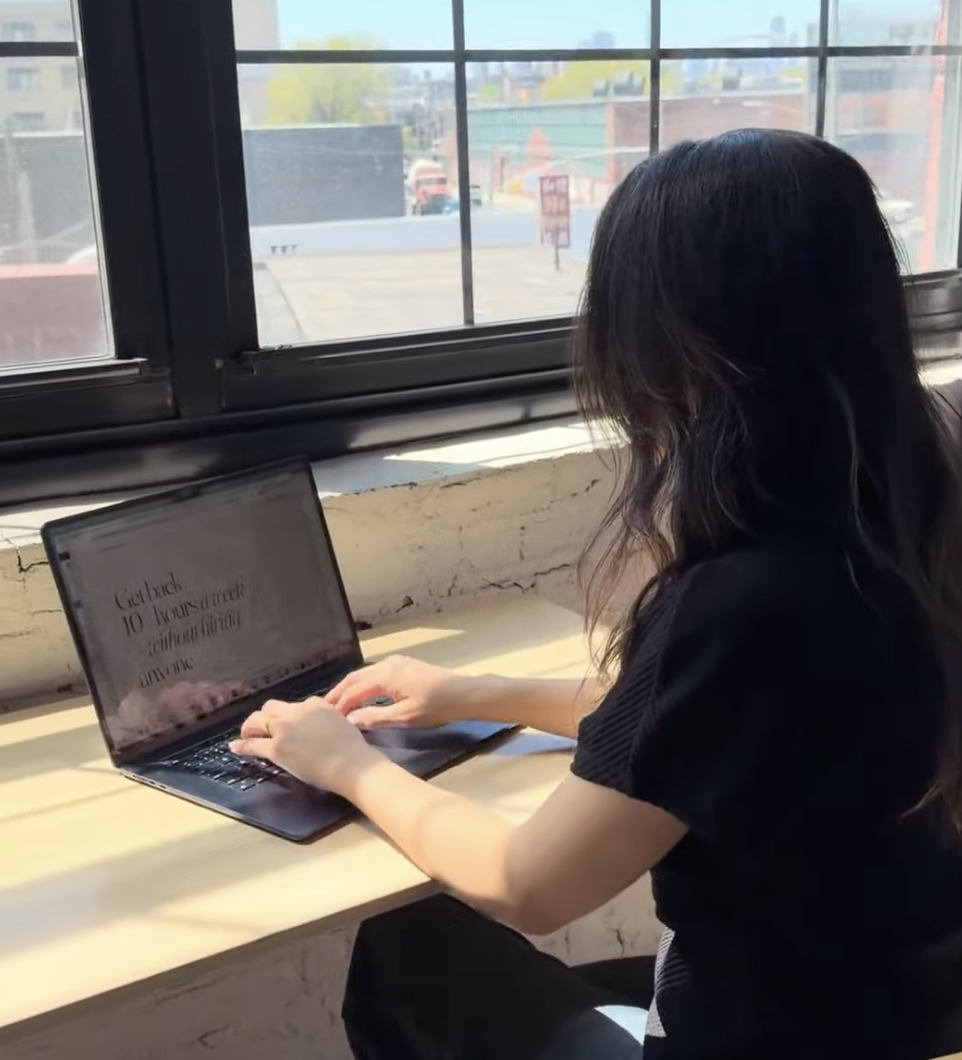
Your Brand Playbook is the single most important file in this whole system. It's what teaches every assistant on your team to sound like you—not a generic AI. You'll upload it into every Project you build going forward.
The exercise has two parts. Each is a guided interview with a custom GPT—you'll answer questions out loud or by typing, and the assistant will pull together your answers into a structured output. Plan for about 20 minutes per part. You can do it from your phone.
Here's the flow:
Click Part 1 below. You'll be taken to the first custom GPT. Work through the interview at your own pace. When it's finished, copy the final output it gives you.
Open this Google Doc [link] and paste Part 1's output into the top section.
Click Part 2 below and do the same thing—work through the interview, copy the final output.
Paste Part 2's output into the Google Doc in the section below Part 1.
Download the Google Doc as a Markdown (.md) file. In Google Docs: File → Download → Markdown (.md). This is the format Claude reads best, and it's what you'll upload into your Projects.
That's it. Save this file somewhere you'll find it easily—you'll reference it every time you set up a new Project.
A few tips:
Use voice input if you can. Speaking your answers tends to produce a Playbook that actually sounds like you. Typing makes people self-edit, and the output gets stiffer.
Don't overthink the questions. Your first instinct is almost always the right one—the GPT is structured to surface what's already true about your brand, not invent something new.
If you get partway through and want to stop, your progress is saved in the chat. Just come back to the same conversation later.
Once you have your Brand Playbook downloaded, you're ready for Step 2.
Start Your Brand Playbook Exercises

Step 2
Each Skill is a single .md file. Here's how to add one to your Claude account:
Click [Download] next to any assistant below. The file will save to your computer (it'll look like newsletter-writer.md—that's correct).
In Claude, open the left-hand menu and click Skills.
Click Create skill → Upload skill and select the file you just downloaded.
Claude will load it. That's it—the assistant is now available in any conversation or project.
Repeat for every assistant you want on your team.
A few tips before you start:
Don't unzip or open the .md file in a text editor first. Upload it exactly as it downloaded.
You'll get the most out of these once your Brand Playbook is uploaded into your Claude Project. The Skills are built to pull from it.
If you ever feel like you've "broken" a Skill by tweaking it, you can delete it and re-upload the original file from this page. Nothing is permanent.
New to Skills and Projects? The setup video covers this in five minutes—watch that first if you haven't yet.
Download Your Skills
Download Your Skills
Your Content Team
Newsletter Writer — [Download]
Blog & Long-Form Writer — [Download]
Social Media Hooks & Captions Writer — [Download]
Email Copywriter — [Download]
Your Sales & Strategy Team
Sales Page Copywriter — [Download]
Website Copywriter — [Download]
Webinar Script Writer — [Download]
Podcast Script Writer — [Download]
Your Planning Team
Social Media Content Strategist — [Download]
Flyer & Printed Materials Copywriter — [Download]
Step 3
Start Your First Claude Project
A Project is a workspace in Claude for a specific area of your business—your weekly newsletter, a launch, your blog, your membership. It holds the files Claude needs to do that work well: your Brand Playbook, examples of your past content, anything else relevant to that focus area.
You'll create one Project per focus area. Don't combine multiple types of content into a single Project—Claude does its best work when each Project is narrow and clearly scoped.
Here's how to set up your first one:
Open Claude and click the Projects icon in the left-hand menu (it looks like a small file system).
Click "New Project" and give it a name. Use something specific like "Weekly Newsletter" or "Recipe Club Launch"—not "Marketing." The name is just for you, so make it clear.
Add a short description (optional, but helpful). One line is plenty: "Weekly newsletter for my membership audience."
Upload your files in the Project's file section:
Your Brand Playbook (the .md file you downloaded in Step 1)
Examples of past content in this category—if it's a newsletter Project, upload a few of your best past newsletters. If it's a blog Project, upload past blog posts. The more examples Claude has, the closer the output gets to your voice on the first try.
Any reference docs that help Claude understand what you're doing here—a content calendar, audience notes, brand assets.
Start a conversation. Open the Project, type your prompt into the chat box, and Claude will pull from everything you've uploaded plus the right Skill for the job.
That's the whole setup. Once your files are in there, they stay—you don't re-upload them each time you start a new conversation in that Project.
Need a starting prompt? We've included a full prompt library in your Startup Guide—copy-paste prompts organized by content type, so you're never staring at a blank chat box wondering what to type. Use them as-is, or tweak them to fit what you're working on.
A few tips:
One Project per focus area. A Newsletter Project and a Blog Project are separate, even if they're for the same business. This keeps Claude's context clean.
Re-upload your Brand Playbook into every new Project. Each Project is its own container, so the Playbook needs to live inside each one.
Use the chat for one-off context. If you're writing a single newsletter that references a specific study or article, paste that into the chat itself instead of uploading it to the Project—it's a one-time reference, not something Claude needs forever.
If you use Google Drive, you can connect it to Claude and link files directly instead of uploading static copies. Updates in Drive sync automatically. Helpful if your Brand Playbook or content evolves over time.
Give Claude feedback as you go. If a draft isn't quite right, tell it what to change. That feedback shapes the rest of the conversation, and the more specific you are ("don't use the word 'quietly,'" "no spaces around em dashes"), the better the next draft will be.
You're set. Open your Project, give Claude a prompt, and watch your first piece of content come together in your voice.
Video Library
Short walkthroughs for every step of setup and ongoing use. Watch them in order if you're starting from scratch, or jump to whichever one you need.
A few things to know:
Every video is under 15 minutes. Most are closer to five.
You can watch from your phone, but setup itself is easier on a laptop.
Captions are on by default. Toggle them off in the player if you'd rather not have them.
If something in Claude's interface looks slightly different than the video, that's normal—Anthropic ships updates often. The core steps don't change.
vimeo videos and thumbnails will go here
Frequently Asked Questions
-
You can start on the free plan, but we recommend Claude Pro ($20/month) once you're using your assistants regularly. The free plan limits how much you can do in a session, and you'll hit those limits quickly with longer content like sales pages or full newsletters.
-
A Project is a workspace for a specific area of your business—your newsletter, a launch, your membership. It holds the files Claude needs for that work (your Brand Playbook, examples, reference docs). A Skill is a specific job Claude knows how to do, like writing a newsletter or a blog post. Skills work across all your Projects. Most members use both: one Project per focus area, plus the Skills that match the content you're creating.
-
Yes. Each Project is its own container, so you'll re-upload your Brand Playbook (and Style Guide) any time you create a new one. Once it's in there, it stays—you only do this once per Project.
-
Item desNo. That popup appears on some Macs the first time you use certain features. You can install them if you want (it's harmless), or close the window. It won't affect your ability to upload and use Skills.
cription
-
Item desTwo places to make adjustments:
Inside the conversation: Tell Claude exactly what to change ("never use the word 'quietly,'" "no spaces around em dashes," "drop the bulleted summary at the end"). It'll apply the change going forward in that conversation.
In your Claude settings: Go to Settings → Personalization and add global preferences there. Those apply to every conversation, every Project.
If a phrase keeps showing up across multiple drafts, that's a signal to add it to your global preferences.cription
-
Yes, and we'd encourage it once you've used them for a few weeks and know what you'd tweak. If you ever feel like an edit went sideways, delete the Skill and re-upload the original file from this page. You can't break anything permanently.
-
Inside a Project, yes—it remembers everything in that Project's chat history. Across Projects, not by default. You can turn on memory in Settings → Personalization, which helps Claude carry context between conversations. We recommend enabling it.
-
The Skills are written for Claude, which has the strongest performance for voice-sensitive writing in our testing. You can adapt them for ChatGPT by pasting the content into a Custom GPT's instructions field, but the experience won't be identical.
-
Item descriptThis is the most common thing we hear in the first week, and it's almost always one of three fixes:
Your Brand Playbook needs more substance. If your answers in the Step 1 interviews were short or surface-level, the Playbook won't have enough to work with. Go back, run through it again with voice input, and let yourself talk longer than feels necessary.
You haven't given Claude examples of your past work. A Brand Playbook tells Claude what your voice is. Examples show it. Upload three to five pieces of your best past content into the Project—newsletters, blog posts, captions, whatever fits the focus area.
You're not giving feedback inside the conversation. Claude won't nail it on the first try every time. When something's off, say so: "this opening feels too formal," "drop the bullet point summary," "this isn't how I'd say it—try again with a warmer tone." Each piece of feedback sharpens the rest of the chat.
If you've done all three and it's still off, email us. We'll take a look.ion
-
Email us at hello@fifteenthpage.com. We answer every email personally. If you're running into something we hear from a few people, we'll add it to the FAQ or record a short video for the library.